



The UGC Creator's Toolkit Part 2: Best Tools for Filming and Editing
The UGC Creator's Toolkit Part 2: Best Tools for Filming and Editing
Discover five UGC editing tools for faster, cleaner videos, from CapCut and InShot to Descript, Submagic, and Canva.
Published:

Read Time:

4 min

Written by:
Fawwaz
Trend Research and Copywriter
EDITING IS IMPORTANT, BUT THAT DOESN’T MEAN IT HAS TO BE COMPLICATED
You might have a great UGC idea, a strong hook, and a solid script, but you could ruin all three with a video that’s uncomfortable to watch.
EDITING IS IMPORTANT, BUT THAT DOESN’T MEAN IT HAS TO BE COMPLICATED
You might have a great UGC idea, a strong hook, and a solid script, but you could ruin all three with a video that’s uncomfortable to watch.
EDITING IS IMPORTANT, BUT THAT DOESN’T MEAN IT HAS TO BE COMPLICATED
You might have a great UGC idea, a strong hook, and a solid script, but you could ruin all three with a video that’s uncomfortable to watch.
Since Part 1 covered useful tools for UGC pre-production, Part 2 will focus on the production process where UGC editing is typically much simpler than conventional video production. This is because the main goal is to make the message easy to understand, cut out parts that slow down the video’s flow, and package it in a style that feels natural for TikTok, Instagram Reels, or YouTube Shorts. Backstage’s 2026 guide also highlights a similar distinction, noting that UGC editing focuses more on communication than on cinematic storytelling.
So here are 5 tools you can use for your UGC production phase:
1. CapCut: The Best Starting Point for Most UGC Creators
CapCut has become one of the default editors for short-form creators because most of what a beginner needs already exists in one place.
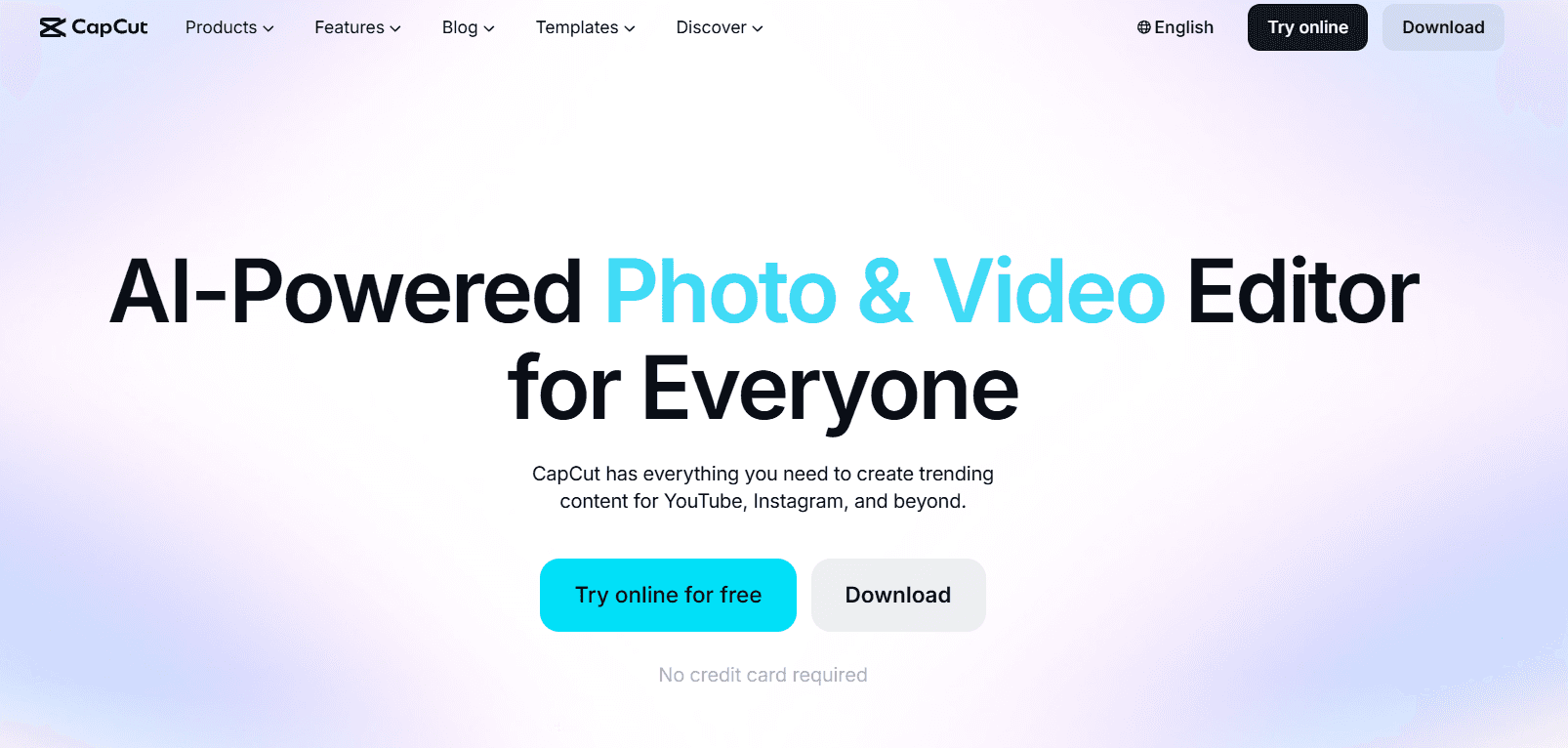
You can trim clips, generate captions, add text animations, use templates, sync audio, and apply effects without moving the project between several apps. This app comes highly recommended, especially for TikTok creators, beginners, and for quick content creation, in fact, CapCut could even be considered the go-to editing tool for short-form user-generated content.
When to use it
CapCut is the easiest choice when you are making standard TikTok, Reels, or Shorts UGC and want to handle the entire basic edit in one app. To create UGC such as talking-head testimonials, product demonstrations, GRWM videos, reaction videos, or short tutorials, you can even use the free version of this app without upgrading it to the Pro version.
One feature worth trying: templates
Starting with a blank sequence does give you complete creative freedom. However, if you’re not yet familiar with video editing, CapCut even provides templates that include a sequence of clips, transitions, text, and audio timing settings that you can use right away.
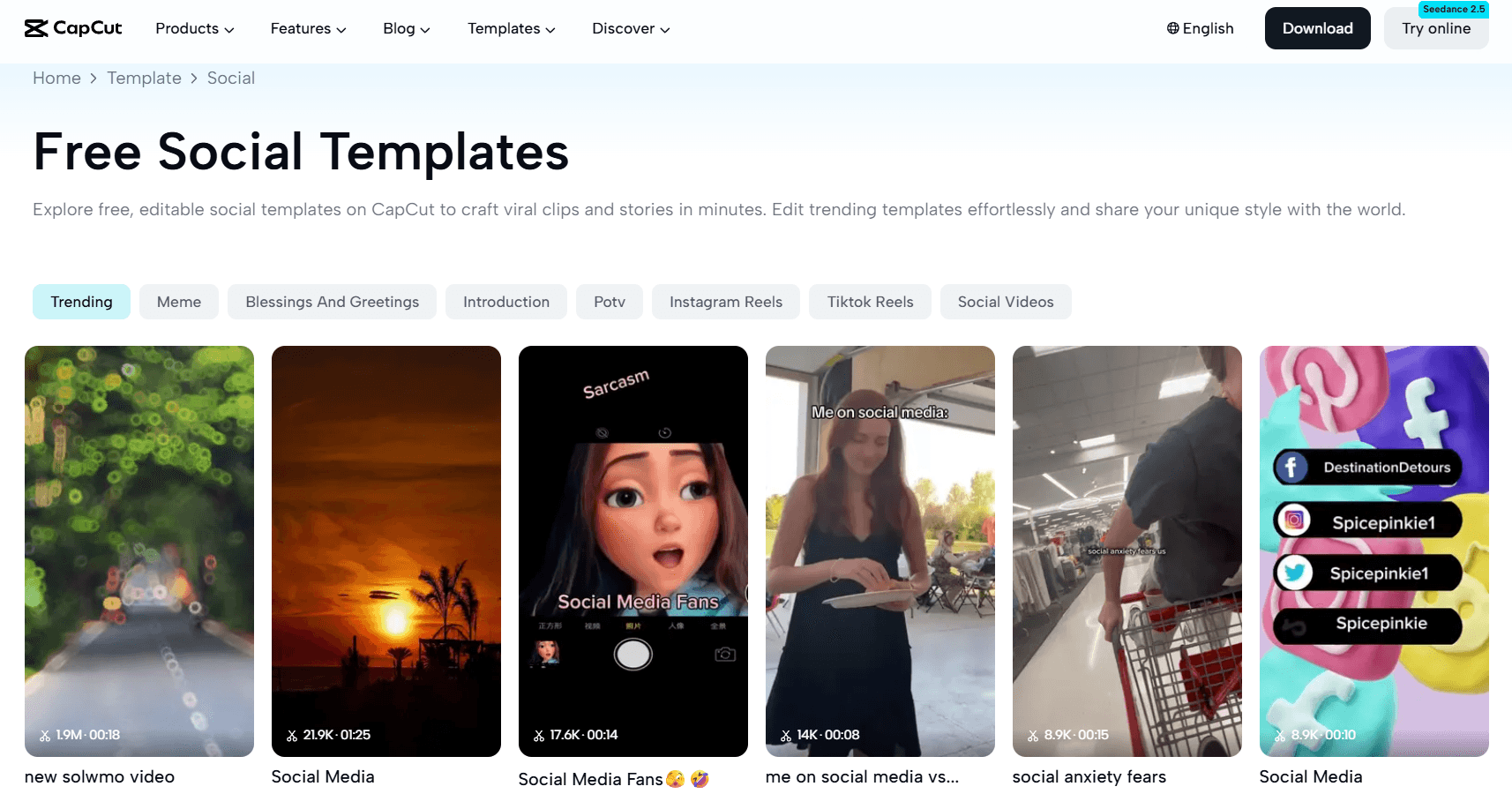
Not only for beginner creators, this feature is also helpful for creators who produce many videos each week, as it reduces the burden of making repetitive editing decisions.
2. InShot: When You Just Want to Edit and Post
Capcut offers a wide variety of features, but as a UGC creator, you might not need them. That is where InShot becomes useful, by focusing on straightforward editing.
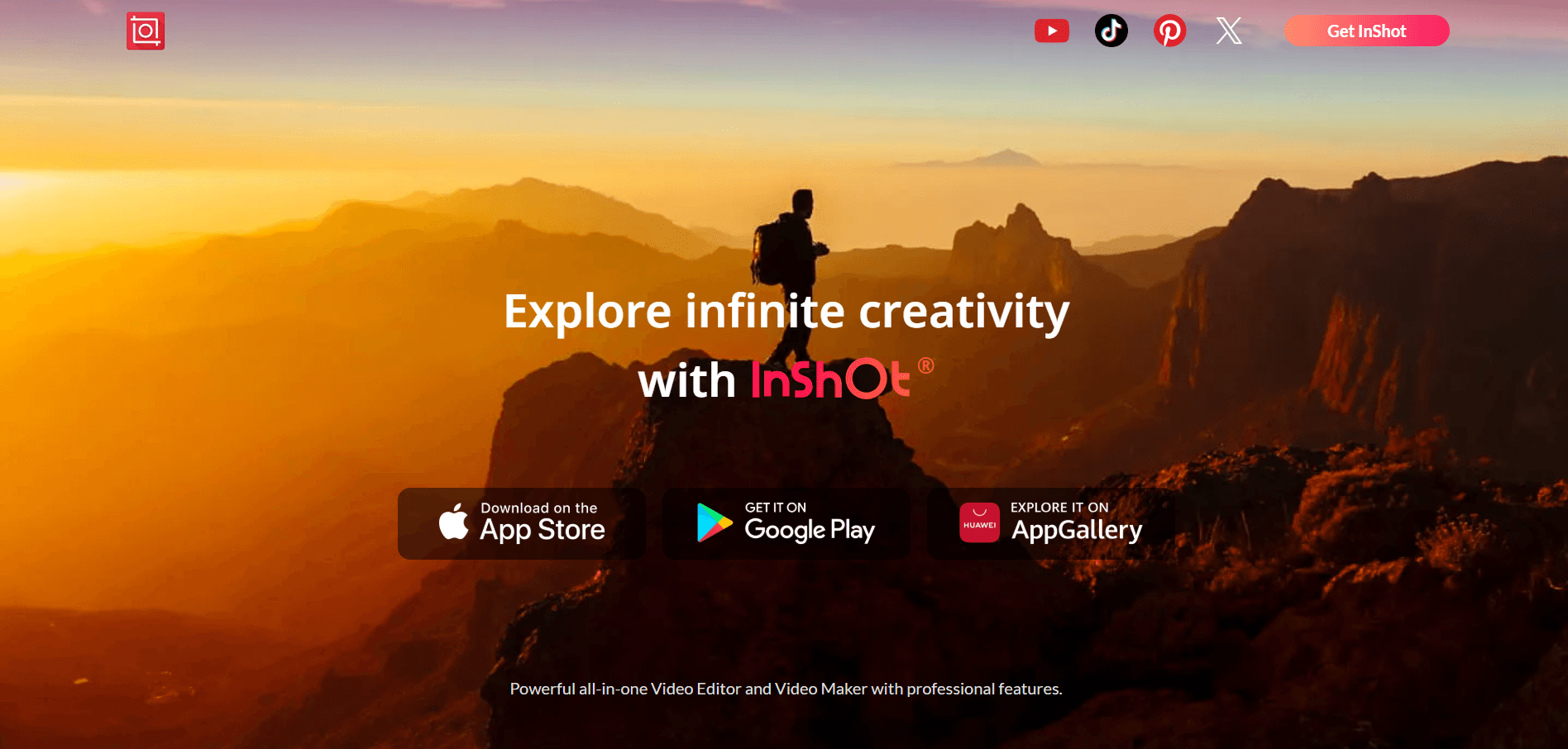
Trimming clips, changing canvas dimensions, adding music, inserting text, and exporting are easy to find. InShot is a recommended app for lifestyle content creators and those needing quick editing for social media, thanks to its fast and simple editing features. Additionally, the free version of this tool is available, so creators don’t have to pay to use it
When to use it
Imagine you filmed a simple product demo that does not require complicated effects:
Hook → three clips showing the product → reaction → CTA
InShot is perfect for this workflow because all you need to do is trim clips, add text, resize the video, and export it. Its aspect ratio adjustment feature is also useful when preparing content for various social media platforms without having to redo your edits from scratch.
3. Descript: Edit Talking-Head UGC Like a Document
Video creators who use the talking-head format often face editing challenges: they record a script that’s supposed to be 60 seconds long, but it ends up stretching to three minutes due to pauses, repeated phrases, mistakes, “ums,” and “uhs.” Descript handles these recording issues effectively.
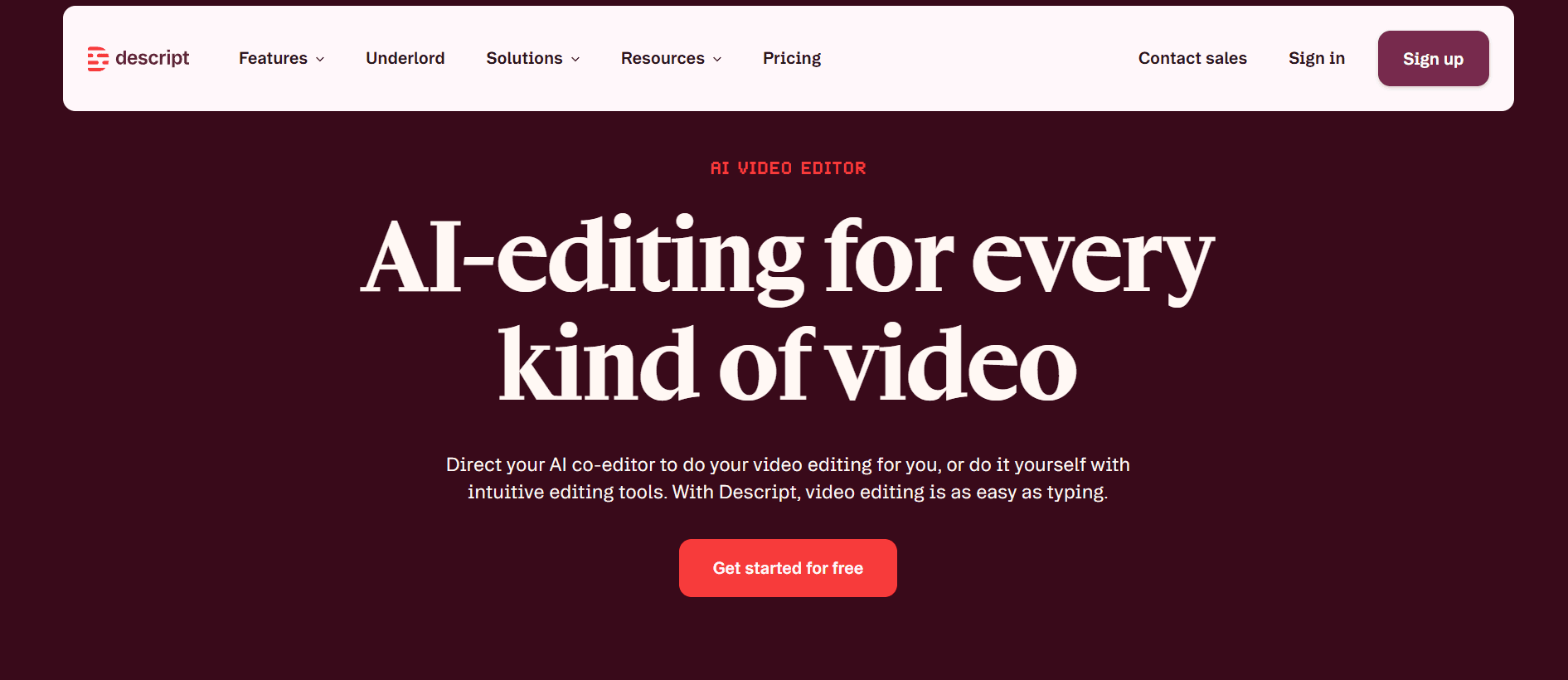
Descript transcribes the recording and lets the creator edit the video through the transcript. Delete a sentence from the text and the corresponding section of video is removed. It can also identify filler words and offers automatic captions. That makes it particularly useful when the spoken delivery is the hardest part of your edit.
When to use it
Descript is ideal for producing talking-head videos, testimonials, or explanatory videos with a difficulty level ranging from beginner to intermediate, and it offers a free version. This tool is especially useful when a brand requests revisions to a video with a lot of dialogue, as Descript can identify filler words in the transcript and help remove them. This saves you the trouble of manually searching for filler words, making your production process much faster and more efficient.
4. Submagic: When Captions Need More Attention
The Auto Caption feature is available in apps like Capcut, but you’ll need to use the paid version to access it. That’s why you might want to try Submagic, which will be especially useful if captions are an important part of the visual style of the videos you create.

Submagic is built around dynamic captioning and short-form video enhancement, giving creators another option when standard subtitle styling feels too basic. Third-party UGC tool guides particularly position it around high-retention, dynamic caption styles.
When to use it
Submagic is a very beginner-friendly tool and is ideal for talking-head videos that make heavy use of captions and fast-paced explainer videos. Instead of displaying entire sentences as static captions, Submagic can place stronger visual emphasis on key phrases as they are spoken. This makes dialogue-heavy videos easier to follow visually.
5. Canva: For the Parts That Need to Look Designed
Canva isn’t like the previous tools used for editing UGC videos, but its added value really shines when video editing requires visual elements that need custom design.
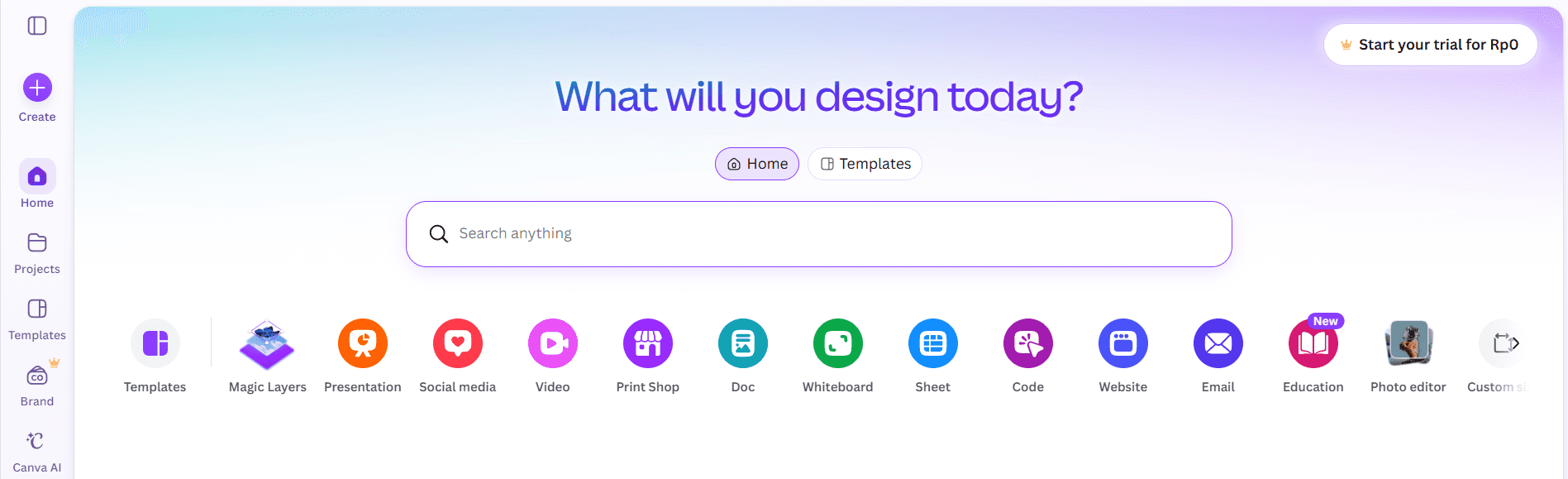
Canva is also very useful for creating thumbnails, comparison charts, ranking cards, screenshot frames, title cards, and text overlays with brand elements. Additionally, Canva’s free video features allow you to add text overlays to specific parts of a video, making it a useful complement to your primary editing software.
When to use it
Canva is ideal for creating graphics, comparison charts, thumbnails, and text overlays, which will help you convey clear information that requires more than just a standard caption. Canva is also beginner-friendly with its free options, allowing you to design something in Canva, export the result, and then place it on the main timeline of apps like CapCut or InShot.
Build a Workflow Before You Build a Tool Stack
The best editing setup is the one that makes it easy to go from filming to publishing. One creator might do everything on a phone with CapCut, while another might use Descript, Canva, and CapCut. Both workflows work. What matters is choosing tools that solve a specific need.

This is especially important when working from structured UGC briefs. Creators may need fast captions, product close-ups, graphics, or specific pacing. Masterhooks focuses on performance-driven creative where tools support the idea rather than become the idea. A creator who can consistently turn a brief into clear, native-looking content is more valuable than one with the longest list of editing tools.
Ready to start producing your UGC videos?

Ready to start producing your UGC videos?
Since Part 1 covered useful tools for UGC pre-production, Part 2 will focus on the production process where UGC editing is typically much simpler than conventional video production. This is because the main goal is to make the message easy to understand, cut out parts that slow down the video’s flow, and package it in a style that feels natural for TikTok, Instagram Reels, or YouTube Shorts. Backstage’s 2026 guide also highlights a similar distinction, noting that UGC editing focuses more on communication than on cinematic storytelling.
So here are 5 tools you can use for your UGC production phase:
1. CapCut: The Best Starting Point for Most UGC Creators
CapCut has become one of the default editors for short-form creators because most of what a beginner needs already exists in one place.
You can trim clips, generate captions, add text animations, use templates, sync audio, and apply effects without moving the project between several apps. This app comes highly recommended, especially for TikTok creators, beginners, and for quick content creation, in fact, CapCut could even be considered the go-to editing tool for short-form user-generated content.
When to use it
CapCut is the easiest choice when you are making standard TikTok, Reels, or Shorts UGC and want to handle the entire basic edit in one app. To create UGC such as talking-head testimonials, product demonstrations, GRWM videos, reaction videos, or short tutorials, you can even use the free version of this app without upgrading it to the Pro version.
One feature worth trying: templates
Starting with a blank sequence does give you complete creative freedom. However, if you’re not yet familiar with video editing, CapCut even provides templates that include a sequence of clips, transitions, text, and audio timing settings that you can use right away.
Not only for beginner creators, this feature is also helpful for creators who produce many videos each week, as it reduces the burden of making repetitive editing decisions.
2. InShot: When You Just Want to Edit and Post
Capcut offers a wide variety of features, but as a UGC creator, you might not need them. That is where InShot becomes useful, by focusing on straightforward editing.
Trimming clips, changing canvas dimensions, adding music, inserting text, and exporting are easy to find. InShot is a recommended app for lifestyle content creators and those needing quick editing for social media, thanks to its fast and simple editing features. Additionally, the free version of this tool is available, so creators don’t have to pay to use it
When to use it
Imagine you filmed a simple product demo that does not require complicated effects:
Hook → three clips showing the product → reaction → CTA
InShot is perfect for this workflow because all you need to do is trim clips, add text, resize the video, and export it. Its aspect ratio adjustment feature is also useful when preparing content for various social media platforms without having to redo your edits from scratch.
3. Descript: Edit Talking-Head UGC Like a Document
Video creators who use the talking-head format often face editing challenges: they record a script that’s supposed to be 60 seconds long, but it ends up stretching to three minutes due to pauses, repeated phrases, mistakes, “ums,” and “uhs.” Descript handles these recording issues effectively.
Descript transcribes the recording and lets the creator edit the video through the transcript. Delete a sentence from the text and the corresponding section of video is removed. It can also identify filler words and offers automatic captions. That makes it particularly useful when the spoken delivery is the hardest part of your edit.
When to use it
Descript is ideal for producing talking-head videos, testimonials, or explanatory videos with a difficulty level ranging from beginner to intermediate, and it offers a free version. This tool is especially useful when a brand requests revisions to a video with a lot of dialogue, as Descript can identify filler words in the transcript and help remove them. This saves you the trouble of manually searching for filler words, making your production process much faster and more efficient.
4. Submagic: When Captions Need More Attention
The Auto Caption feature is available in apps like Capcut, but you’ll need to use the paid version to access it. That’s why you might want to try Submagic, which will be especially useful if captions are an important part of the visual style of the videos you create.
Submagic is built around dynamic captioning and short-form video enhancement, giving creators another option when standard subtitle styling feels too basic. Third-party UGC tool guides particularly position it around high-retention, dynamic caption styles.
When to use it
Submagic is a very beginner-friendly tool and is ideal for talking-head videos that make heavy use of captions and fast-paced explainer videos. Instead of displaying entire sentences as static captions, Submagic can place stronger visual emphasis on key phrases as they are spoken. This makes dialogue-heavy videos easier to follow visually.
5. Canva: For the Parts That Need to Look Designed
Canva isn’t like the previous tools used for editing UGC videos, but its added value really shines when video editing requires visual elements that need custom design.
Canva is also very useful for creating thumbnails, comparison charts, ranking cards, screenshot frames, title cards, and text overlays with brand elements. Additionally, Canva’s free video features allow you to add text overlays to specific parts of a video, making it a useful complement to your primary editing software.
When to use it
Canva is ideal for creating graphics, comparison charts, thumbnails, and text overlays, which will help you convey clear information that requires more than just a standard caption. Canva is also beginner-friendly with its free options, allowing you to design something in Canva, export the result, and then place it on the main timeline of apps like CapCut or InShot.
Build a Workflow Before You Build a Tool Stack
The best editing setup is the one that makes it easy to go from filming to publishing. One creator might do everything on a phone with CapCut, while another might use Descript, Canva, and CapCut. Both workflows work. What matters is choosing tools that solve a specific need.
This is especially important when working from structured UGC briefs. Creators may need fast captions, product close-ups, graphics, or specific pacing. Masterhooks focuses on performance-driven creative where tools support the idea rather than become the idea. A creator who can consistently turn a brief into clear, native-looking content is more valuable than one with the longest list of editing tools.
Ready to start producing your UGC videos?
Related Reading
Related Reading

How to Find the Right Influencer Marketing Agency for Your Brand (Without Wasting Budget)
6 min
|
How to Find the Right Influencer Marketing Agency for Your Brand (Without Wasting Budget)
Learn how to choose an influencer marketing agency using a practical scorecard, performance criteria, red flags, and pre-contract checks.
6 min
|

AI Video Ad Agencies: A Buyer's Guide for DTC Brands (2026)
4 min
|
AI Video Ad Agencies: A Buyer's Guide for DTC Brands (2026)
Compare AI video ad agency types, pricing, performance metrics, ownership rights, and seven questions DTC brands should ask before hiring.
4 min
|

How Taylor Swift Engineered a UGC Wave With 13 Seconds of Video and One Awards Show
4 min
|
How Taylor Swift Engineered a UGC Wave With 13 Seconds of Video and One Awards Show
How Taylor Swift turned a 13-second teaser, Easter eggs, and a live VMA premiere into a UGC engine brands can adapt for organic distribution.
4 min
|


Need help scaling?
Book a strategy call with our expert team to audit your current UGC setup.

